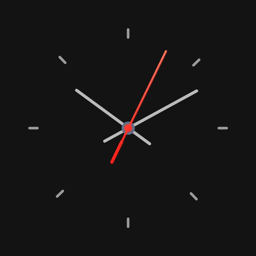
Your clock, your style.
Clock Widget Creator designs analog, digital, LCD and flip clock widgets for your iPhone and iPad Home Screen and Lock Screen. Pick the colors, numerals, time format and time zone, and the widget shows exactly what you designed.

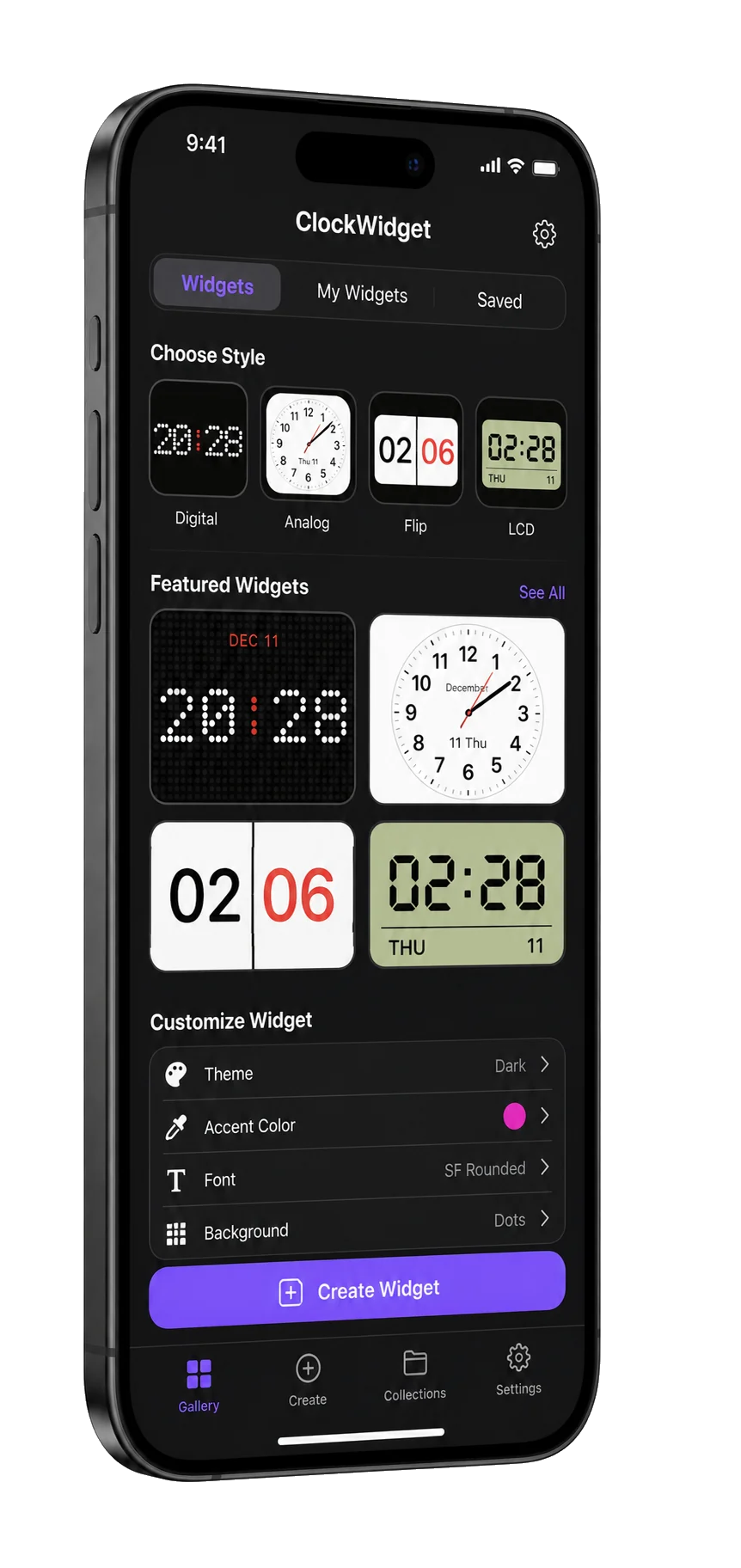
At a glance
- Devices
- iPhone · iPad
- Requires
- iOS 18 and iPadOS 18 or later
- Price
- Free download · Clock Widget Pro $9.99 a year, or $19.99 as a one-time purchaseUS App Store price, checked October 11, 2026 · Family Sharing included
- Free version
- Every face, color and time zone, with a limit on saved clocks
- Languages
- 44
- Your data
- Clocks and alarms stay on this device, with no account and no iCloud sync. Optional feedback never includes your clocks.
- Version
- 26.0.1 · updated
Works with
- Home Screen widgets
- Lock Screen widgets
One clock for every place you think about.
- London
- Bangkok
- Berlin
- Shanghai
Give each clock its own time zone, so a widget can keep family, a team or a favorite city in view. The names above are the demonstration clocks in the screenshot.
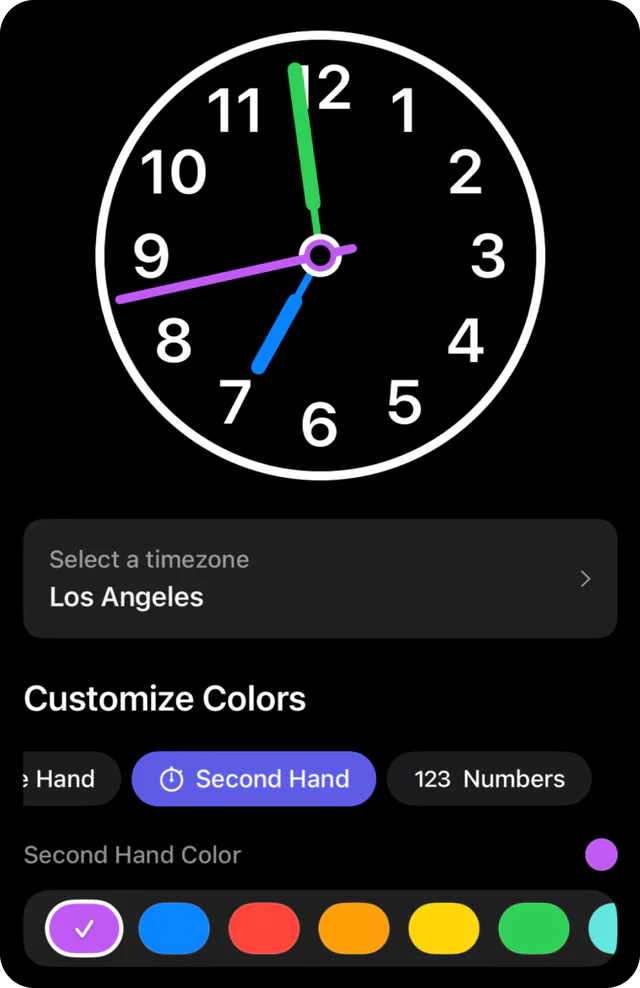
Every hand, every numeral.
Choose a face, then color the hands and the numbers individually. Set the time zone and time format, and preview the clock exactly as it will appear on your screen.
- Analog
- Classic Clean, Classic Serif, Minimal Line
- Digital
- Vertical Roll, Dot Matrix, Micro Dots, Departure
- LCD
- LCD Retro, LCD Modern
- Flip
- Flip Card
Ten faces, all in the free version.
Home Screen, Lock Screen, bedside.
- Home Screen
- The small widget, on iPhone and iPad.
- Lock Screen
- A circular and a rectangular widget.
- Bedside Mode
- Touch and hold a clock in the app and choose Bedside Mode. It fills the screen on black, in portrait or landscape. Tap anywhere to close it.
Each widget shows the clock you pick: touch and hold the widget, choose Edit Widget, then choose a clock. The small widget can also sit in the widget view of iOS’s own StandBy while your iPhone charges on its side. With Auto Day/Night on, a clock turns dark at night in its own time zone.
Clock Widget Pro
Every face and color is in the free version. Clock Widget Pro removes the limit on saved clocks and adds an alarm to any clock, as a yearly subscription or a one-time purchase. The alarm is a time-sensitive notification at the time you set, on the days you choose, in the clock’s own time zone; the silent switch mutes it, so it is not a replacement for a Clock alarm. Clocks stay on your device; there is no iCloud sync. No ads, no clutter.
Questions
Can each widget show a different time zone?
Yes. Every clock has its own time zone, and each widget shows the clock you pick. Touch and hold the widget, choose Edit Widget, then choose a clock.
Can I put a clock on my Lock Screen?
Yes. Besides the small Home Screen widget, Clock Widget Creator has a circular and a rectangular Lock Screen widget, on iPhone and iPad.
Why isn’t my widget updating?
A widget is a picture that iOS redraws on a schedule, not a running clock. Clock Widget Creator hands iOS the next few minutes of that schedule, and iOS decides when to draw each step, sometimes later than planned to save battery, so a widget can lag for a moment, second hand included. The clocks inside the app and in Bedside Mode run live. If a widget stalls, open the app once and give iOS a moment.
What does Clock Widget Pro add?
It removes the limit on saved clocks and adds an alarm to any clock, a time-sensitive notification on the days you choose; every face and color is already free. Choose a yearly subscription or a one-time purchase; there is no weekly plan. Both unlock the same features and work with Family Sharing, and the App Store shows your local price.
Does it need an account or iCloud?
No. Clocks stay on this device, with no account and no iCloud sync. Optional feedback is the only network feature, and it never includes your clocks.


Availability
Start saving clocks free. The app offers Clock Widget Pro as a yearly subscription or a one-time purchase for unlimited clocks and alarm notifications.
- Devices
- iPhone · iPad
- Download
- Free to download
- Purchase options
- Subscription and lifetime options
Prices vary by country; the App Store shows your local price.
Clock Widget Creator support and purchase help
Designed and built by Daniel, an independent Apple developer. Every release is listed in the changelog.